Installing Zimple for Use Case 3 (Client is new to Simple Pay and Zoho People but wants Simple Pay as the Payroll Master and Zoho People as the Leave Master)
This article will walk you through the installation process. Follow the steps carefully to complete the integration.
(1) Signing up for Zimple
You can sign up for Zimple using this link.
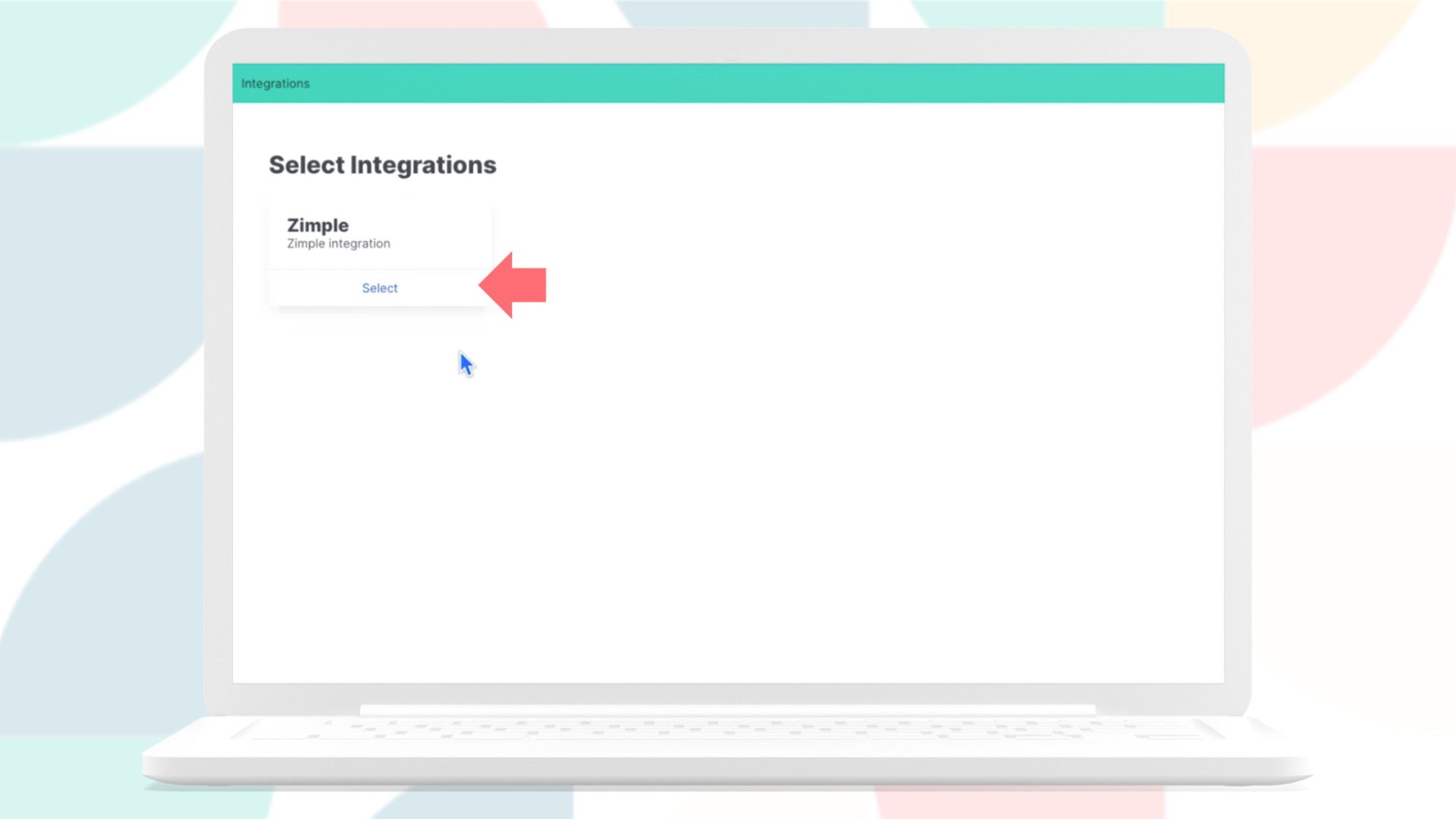
Select the Zimple integration extension.
(2) Configure Simple Pay
Do the basic configuration of Simple Pay, including employee information, compensation details, and other relevant settings. Leave types and policies do not need to be set up in Simple Pay, as they will be managed in Zoho People.
(3) Configure Zoho People
Do the basic configuration of Zoho People, including employee information, leave policies, and other relevant settings.
(4) Getting Started with a Simple Pay API user
Read through the wizard's set-up instructions carefully. You will need to create an API user in Simple Pay to integrate Simple Pay with Zoho People. This is done in Simple Pay under the User Management Settings, as indicated in the steps below.

Remember to save your API key somewhere safe (we recommend in Zoho Vault) before leaving the page. They will only show this once.
In your User Management Settings (Simple Pay), create an API user as indicated below.
Give this API user FULL access to your Simple Pay company.
(5) Link your Simple Pay with Zoho People
Add your unique API key to the Zimple wizard and submit.
Select the Simple Pay company,
and authorise access for the Zimple extension to Zoho People.

Make sure pop-ups are enabled! You will be prompted to sign into Zoho People to authorise the access.
Once you've approved the extension's access, select a folder name for your Simple Pay payslips.
Review the set-up instructions for Simple Pay and Zoho People before clicking Finish.
(6) Integration Settings
Now that the set-up is complete, we can start matching the data between the two platforms.
Start with Employees. Match each Simple Pay employee with the corresponding Zoho People employee. Click on "Match" to lock it in. Once all employees have been matched, you can "Submit" the matches at the bottom of the wizard screen.
Once all Employees have been matched, we can now select our main source for leave balances.
(7) Initiate the Sync
Click on the "Enable Syncing" Button to initiate the integration